A local workbench
for AI coding agents.
Arco runs locally and opens in the browser. Start with one coding agent, or use several on the same project.
Claude, Codex, Cursor, Ollama, llama.cpp and LM Studio. GPL-3.0-only.
LM Studio was tested with a simulated server only. Provider details and optional integrations →
npm install -g arco-workbench
arco setupRequires Node.js 24 or 26. On Windows, install Git for Windows too.
Models and provider subscriptions are not included; provider charges follow the selected provider's terms.
Start with one agent
One connected provider and one project are enough for a first workflow.
This guide describes Arco 0.1.5.
Connect a provider.
Follow its sign-in or local-model setup in Connections. Choose a model that is available to that account or runtime.
Open a project session.
Select New session on a Home project card. Choose the provider, model and permissions, then select LAUNCH WORKFLOW.
Send a small request.
Ask the agent to read the README and explain how to run the project without changing files. Read the reply and inspect the project under FILES.
Working with
several agents
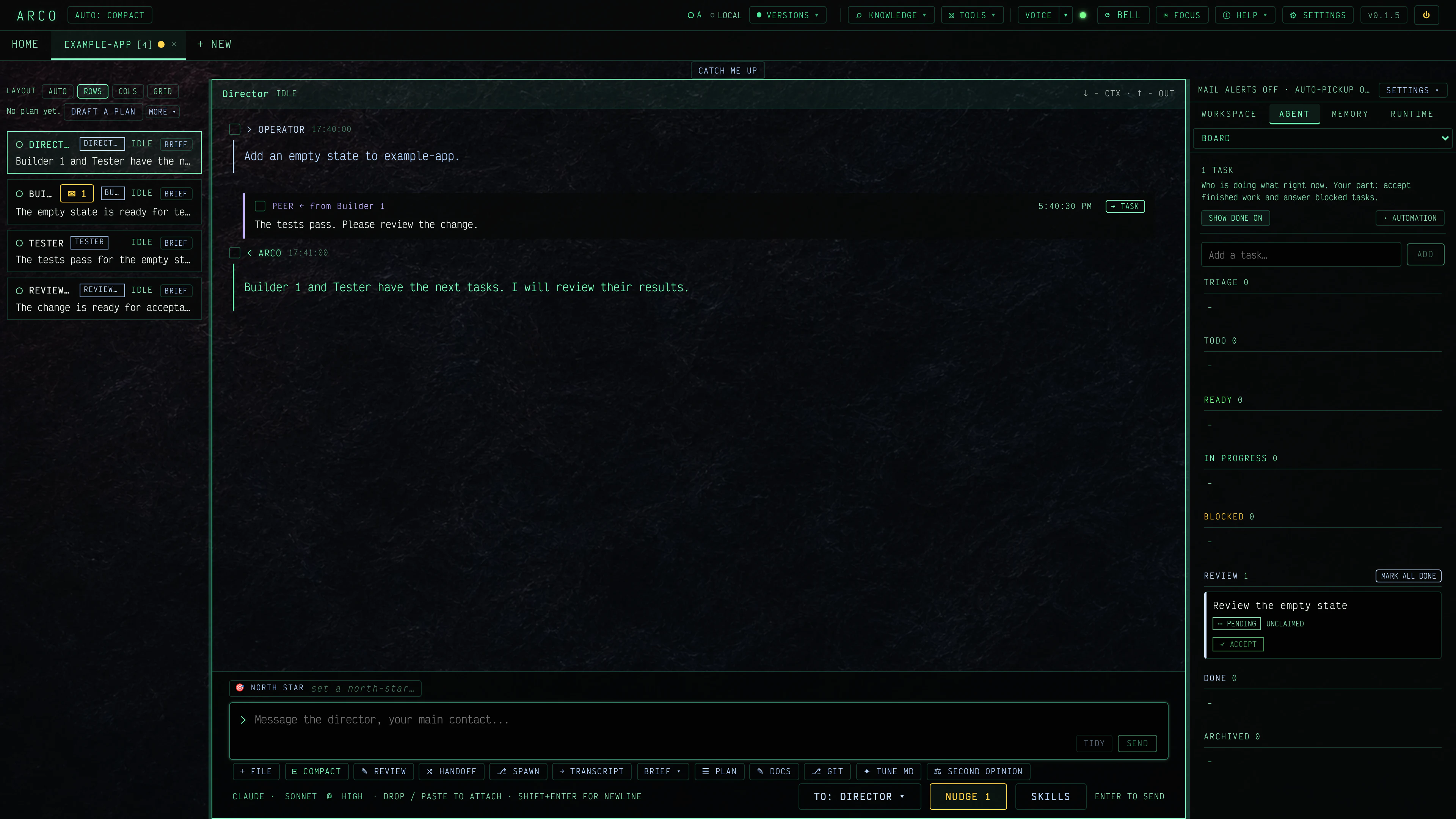
Arco calls a group of agents a cluster. Each member has its own conversation. Members share a project and can work from a shared plan and task board.
Select a member to read about its role.
Director
Keeps the plan current, assigns work to members and checks their results.
Using Arco
Find files, plans, reviews and voice controls, and learn how agents work together.
Install Arco
Requires Node.js 24 or 26. On Windows, install Git for Windows too.
For a fresh install, install the package, then run setup:
npm install -g arco-workbench
arco setupSetup asks before installing the background service and creating an application shortcut. It then starts the service and opens Arco.
Already installed? Use arco update or the in-app UPDATE AND RESTART. Save drafts and finish or cancel running turns first.
Follow Welcome to Arco to add a project and connect a provider. Provider accounts and models are configured separately.